START WHOLESALE SELLING ON THE HIVE NZ
Wholesale selling is a smart move for a vendor as it lowers your cost, it brings you an increase in product movement, brand awareness, bigger reach, flexibilty in pricing strategies and simplified operations.
Wholesale selling on The Hive NZ is really super simple, we like it that way! But if you are looking for a step by step guide, then this is the page for you.
Register as a vendor – if you hadn’t done that already – and on any listing of your choice, in your Hive store, you can add wholesale pricing. Then add the item to the wholesale category (so wholesale buyers can easily find it) and that’s literally it!
Only buyers approved (and vetted) to be wholesale buyers are able to see your wholesale pricing!
Read more below in our step-by-step guide on how to make listings wholesale and read more about the terms related to it.
The terms you agree to
By registering and buying as a wholesale customer, you agree to all the terms here in this page as well as guidelines given to you by admin outside of this page
- Never ask a buyer/customer to complete a wholesale sale outside of The Hive’s platform.
- Never accept a wholesale buyer requesting a sale outside of The Hive’s platform.
- The wholesale buyer is agreeing; when they want to sell the product themself; unless they have agreed with you, the vendor in question; to always honor the your retail price. They are never to charge less than your regular price – especially not online. This excludes occasional, seasonal sales/discounts.
- Unless have agreed with you, the vendor in question; they are not allowed to white label the products they buy. If they intend to do this, they are to use the ‘contact vendor’ button to agree to this in writing BEFORE placing a wholesale order.
- When the buyer and you need to agree on special terms, outside of the scope mentioned here, it is up to the two parties to get this in writing and signed but the order placing will still need to happen here on The Hive NZ Marketplace site.
- We expect full confidentiality from both the buyer and you, the vendor to protect pricing, trade secrets, or unique production methods.
- All standard Terms and Conditions of The Hive NZ Marketplace apply equally to wholesale orders. This includes policies around conduct, payments, use of the platform, and any other general terms outlined in our main Terms & Conditions, which wholesale buyers and sellers agree to by participating in wholesale purchasing.
- Even though we will do all we can to inform and educate our vendors and buyers as best as we can, The Hive NZ is not and cannot be held responsible for any vendor’s products as shown on our website, sellers/buyers decisions in their business process like complying to NZ law where applicable. buyer’s conduct and commitment nor their honesty – as also clearly stated in our Terms & Conditions linked above.
- The Hive NZ Marketplace acts solely as a platform connecting wholesale buyers and vendors. As such, we are not legally liable for any issues, disputes, or losses that may arise from wholesale orders placed through the platform.
Adding wholesale pricing to your listings
From your vendor dashboard go to edit a listing OR do this as you’re adding a new listing;
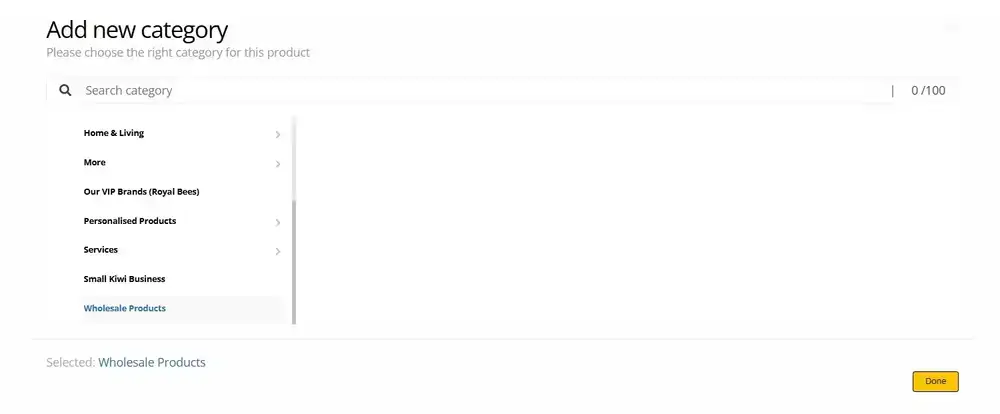
Start by adding your listing to the WHOLESALE PRODUCTS CATEGORY – this makes your products show here
Please only do this when also adding wholesale pricing as shown below.
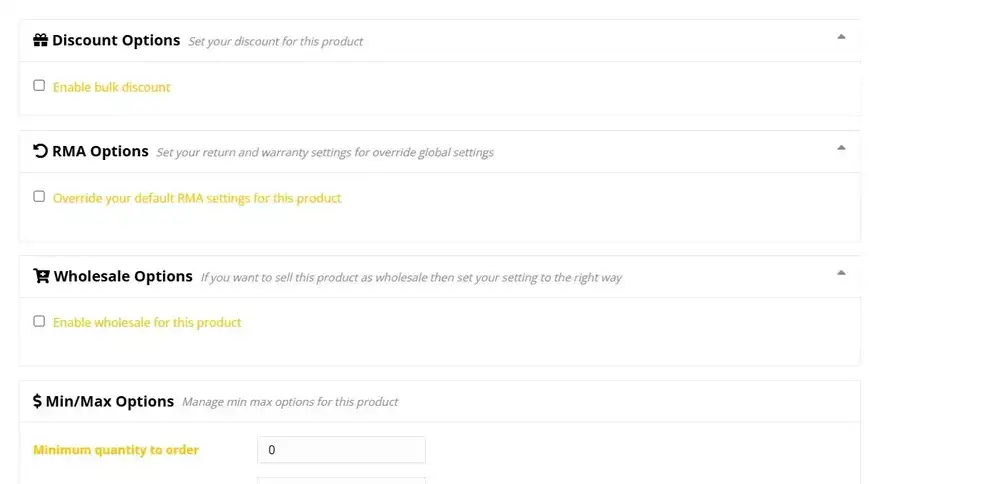
Scroll down to wholesale options and tick ‘enable wholesale for this product’
PLEASE NOTE: if you have attributes(options) added, you need to do this within the attributes field.
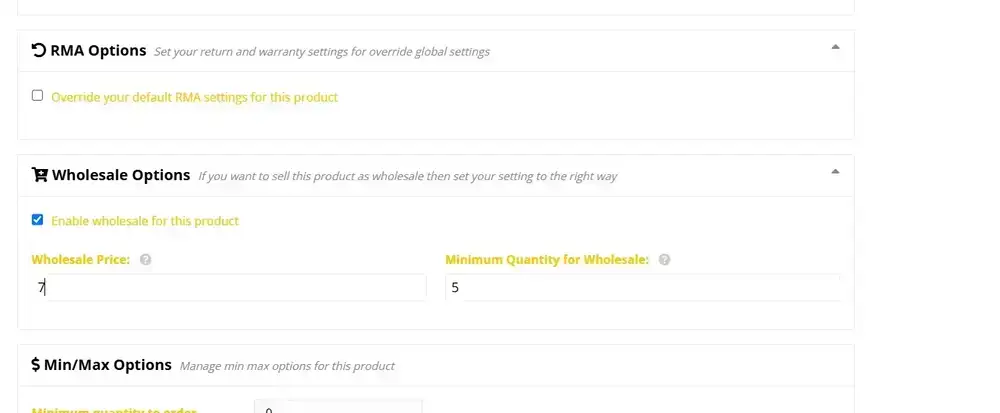
save your product and that’s it!
You have added wholesale pricing to your product.
How to work out quote requests (offers)
You would have received an email to notify you of a buyer making an offer for a wholesale order.
Yes, you can receive these when you have not added wholesale pricing to your listings; it just means the buyer loves your product and would like to purchase it in a higher quantity than one.
When you go to your vendor dashboard, this is what you will see:
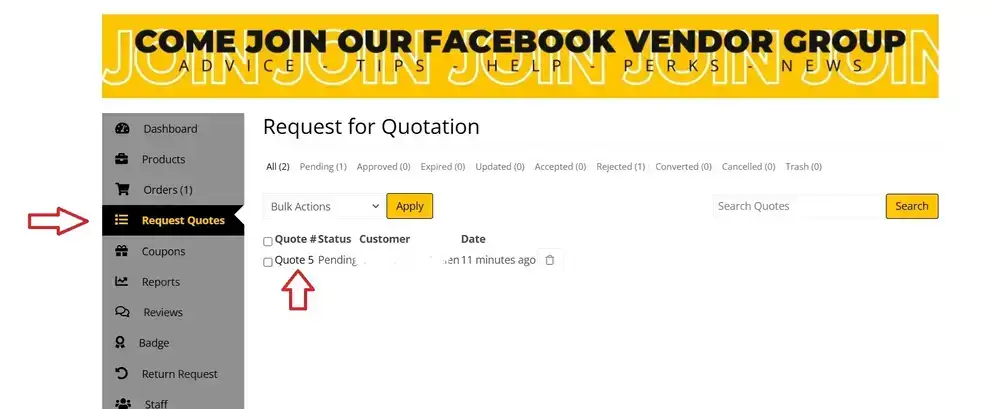
click on the ‘quote’ and it will open the offer/quote request for you.
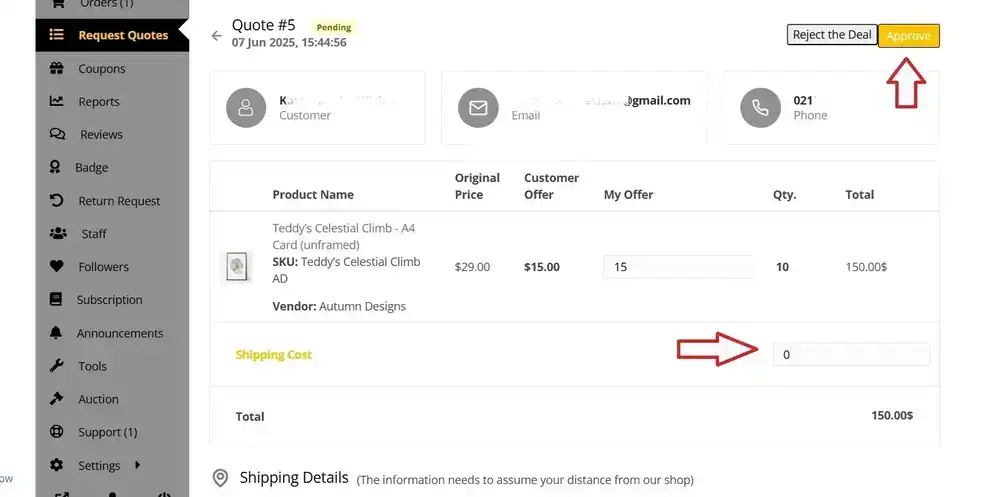
You have 3 choices;
Reject the deal – this will stop this process instantly. The buyer will be notified via email.
Accept – this will let the buyer know via email you have accepted their offer and they then have 11 days to convert the quote request to an order from their dashboard.
IMPORTANT: do not forget to add your shipping cost!
Counter Offer – more info below
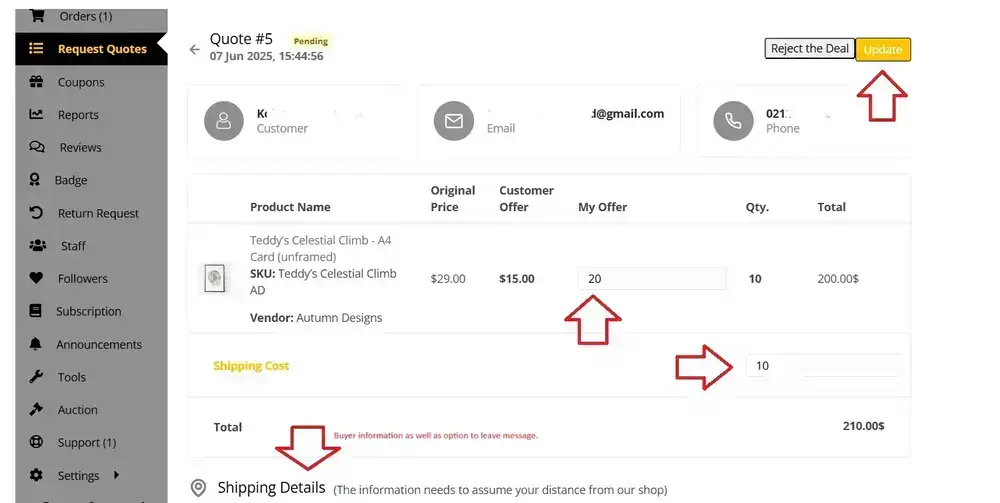
Counter Offer; it gives you the opportunity to change the price per item the buyer has offered, to adjust your shipping cost and there’s an option to leave a message for the buyer to agree to.
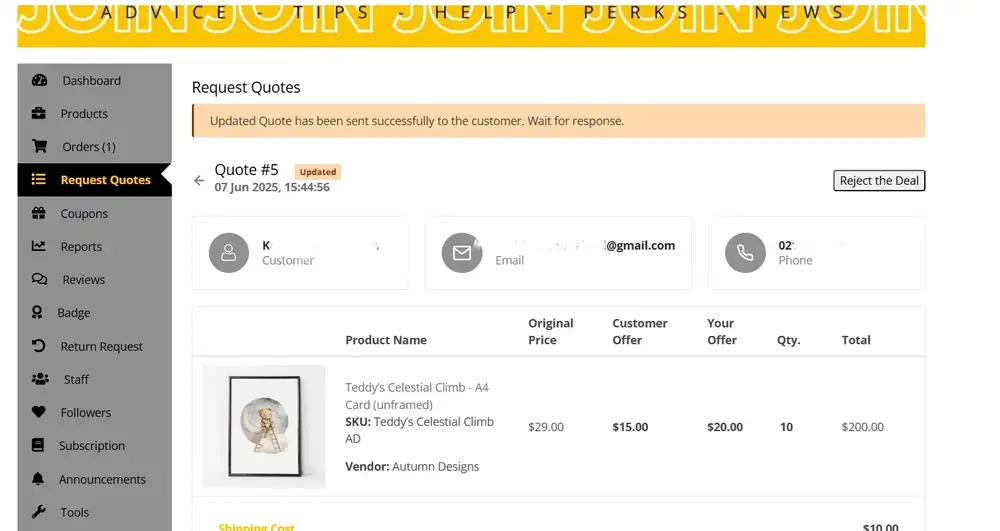
Once you have completed that, the quote request will look something like the above.
It is now up to the buyer to accept or not. when they do, they are prompted to convert the quote to an order and from there the process is like any other order on The Hive NZ.