Use this guide to set up the Shipping Tab on your product listings. Although you define your actual shipping rates in your main settings, this tab allows you to communicate your specific delivery, processing, and refund policies to the customer. Providing clear information on every listing creates transparency; furthermore, it builds trust before the customer reaches the checkout.
Please read these instructions carefully. You must keep the specific tick box mentioned in Step 3 unticked. Selecting this box by mistake triggers an outdated system. Consequently, this may prevent customers from completing their orders.
Setting Up Your Shipping Tab
Each product listing features a dedicated shipping tab. Configure this section to help customers find key information directly on the product page:
- Where you ship your items
- How quickly you dispatch your orders
- Your shipping policy, including standard costs
- Your returns and refund policy
When you edit these settings, the system automatically applies the information to all your products as shown here:
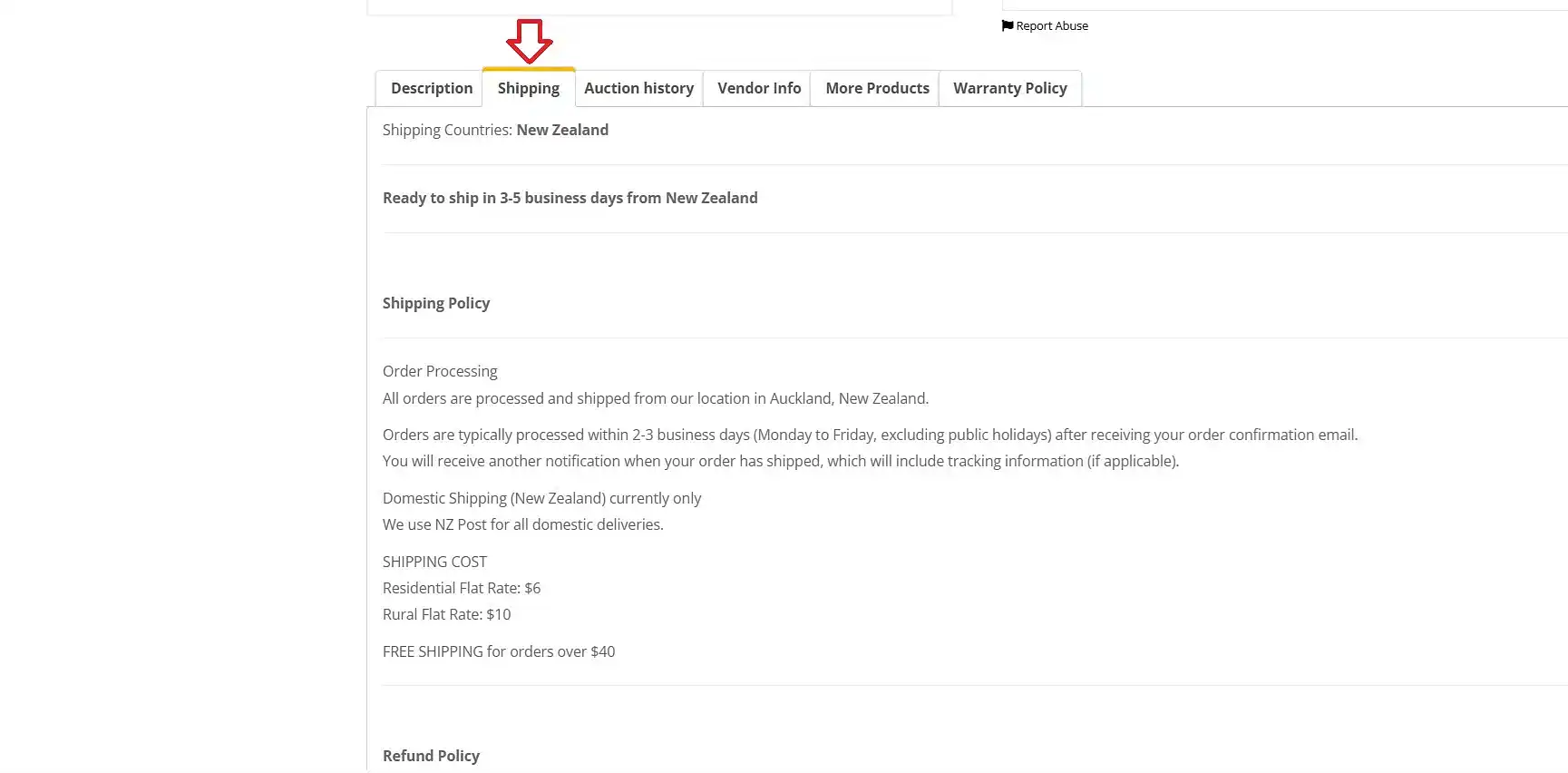
Below the steps to configure the shipping tab on all your product listings:
STEP 1: Navigate to your Vendor Dashboard>Settings and select the Shipping tab.
STEP 2: At the top of the screen, you will see the prompt: “If you want to use the previous shipping system then Click Here.”
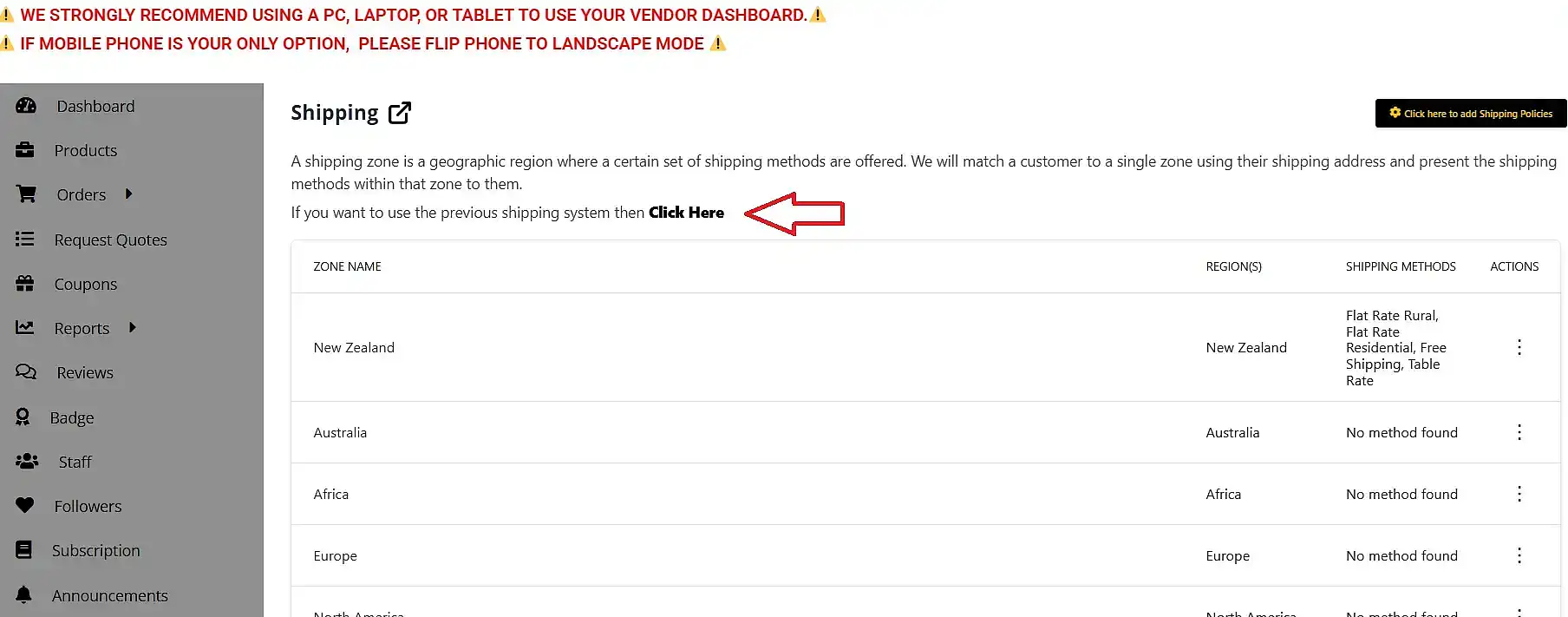
STEP 3: Use the fields indicated by the green arrows in the screenshot below to input your policies. This is now your opportunity to inform the customer of your shipping charges as well. Add what options – and their cost – you have available as shown in the first screenshot of this guide.
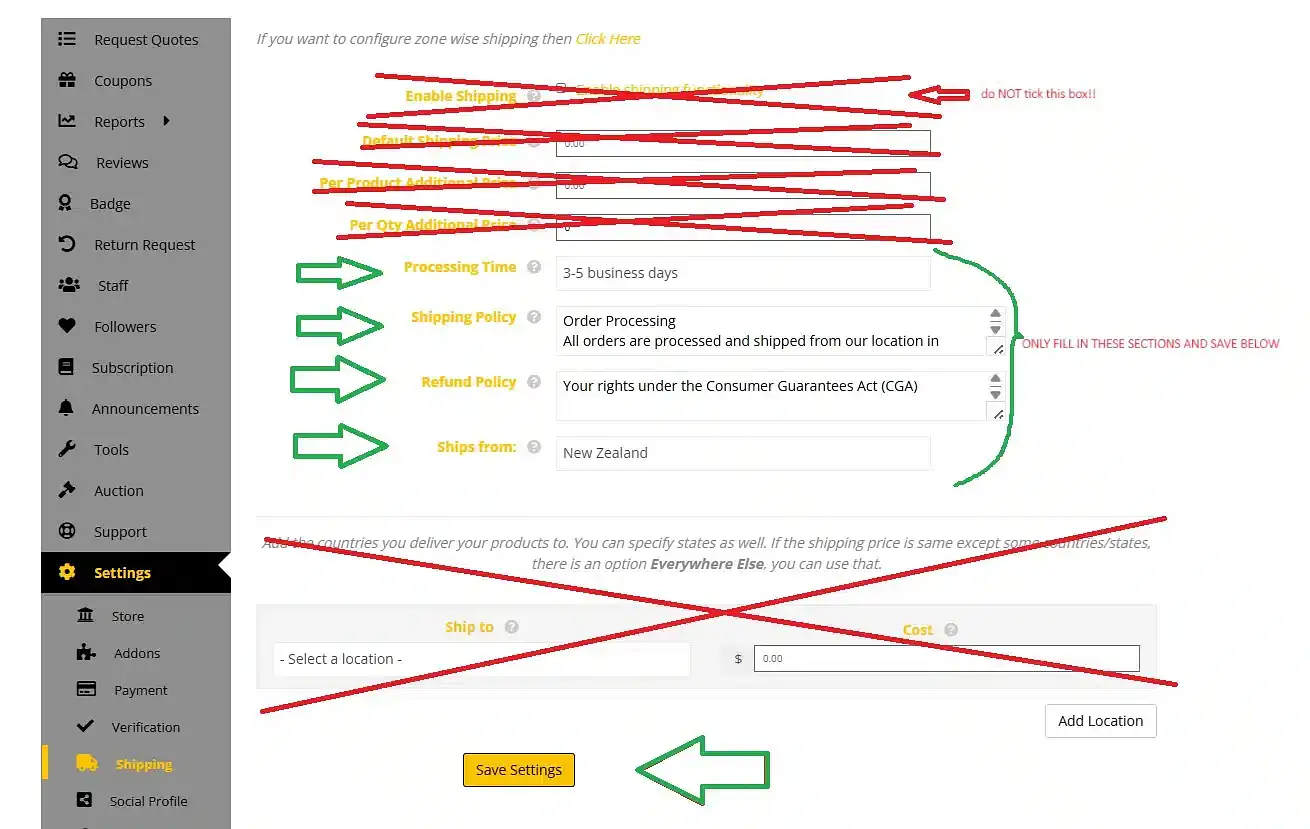
Vital Check: For the current shipping system to function correctly, the tick box at the top must NOT be ticked. If you check this box, you will revert to an outdated system which can cause issues with customer orders.
STEP 4: Once you have completed these fields, ensure you click Save.