When you are approved as a wholesale buyer on The Hive NZ, it means you see added information on product listings.
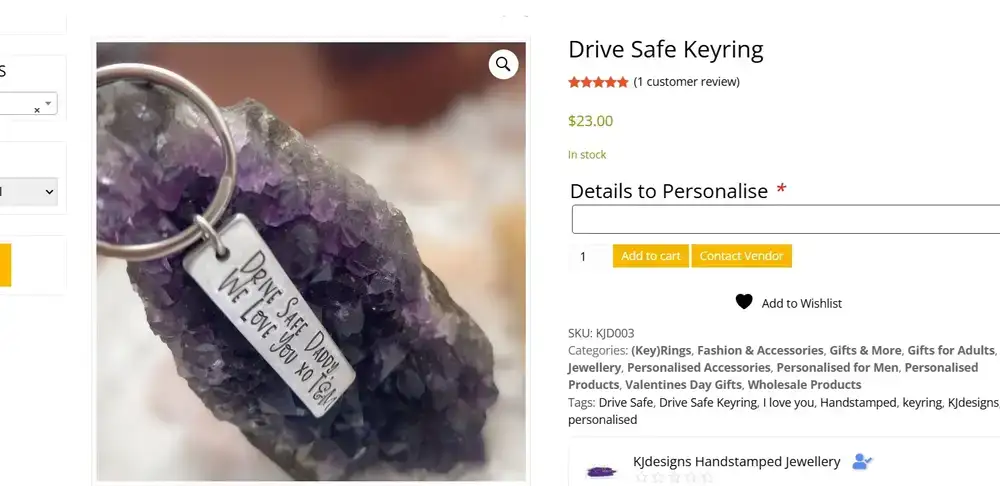
product as seen by regular customer
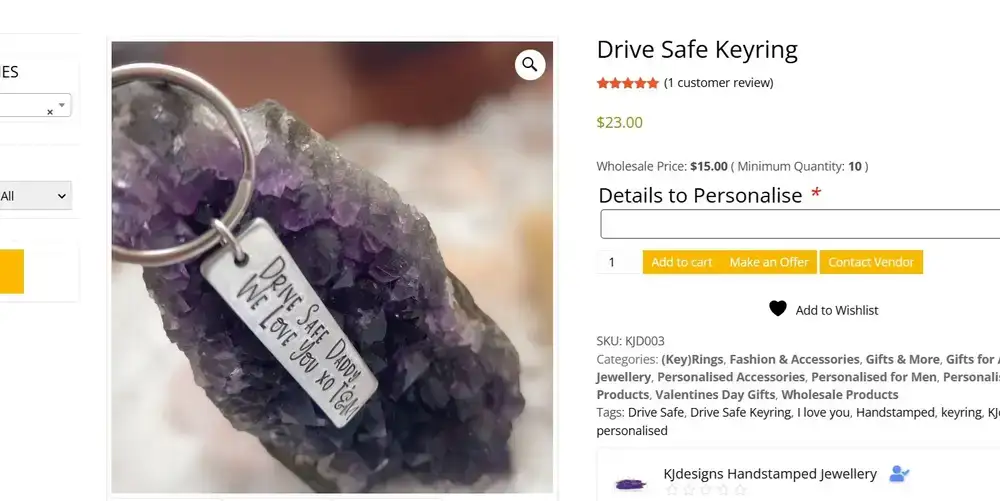
product as seen by wholesale buyers
As you can see in the above images, as an approved wholesale buyer on The Hive NZ, you can see it when a vendor has added wholesale pricing to a listing AND you can see the ‘make an offer’ button on the listing.
Use OFFERS/QUOTES when you want to buy a different number of a product at a certain price, than mentioned in the wholesale pricing listed on the product. OR when you see a product which has no wholesale pricing mentioned at all and you would like to purchase it in certain numbers at a certain price per unit.
Let’s get you started;
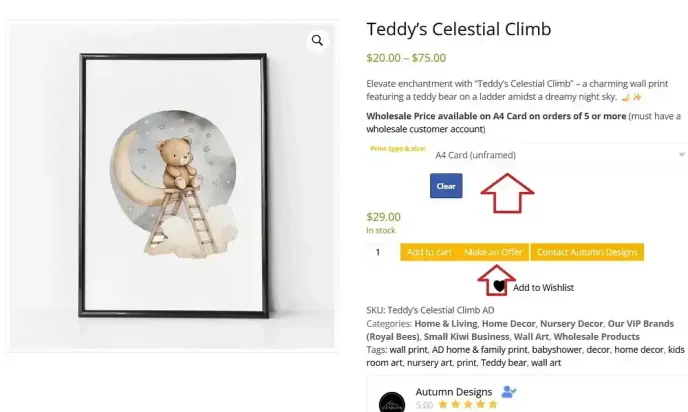
When a listing has options, make sure you choose which option you are looking to purchase at wholesale price.
Then click ‘make an offer’
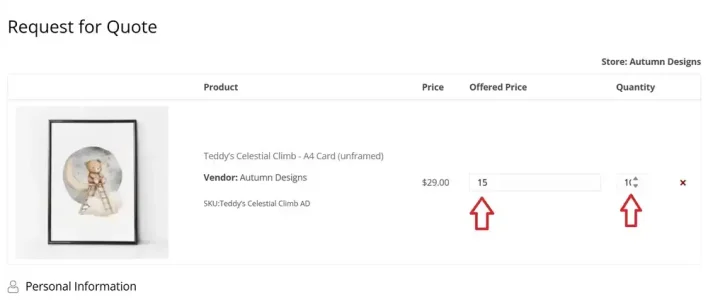
This opens up the above screen where you first change (or leave as is) the price per unit and then the number of products you would like to purchase.
Scroll down to the next section:
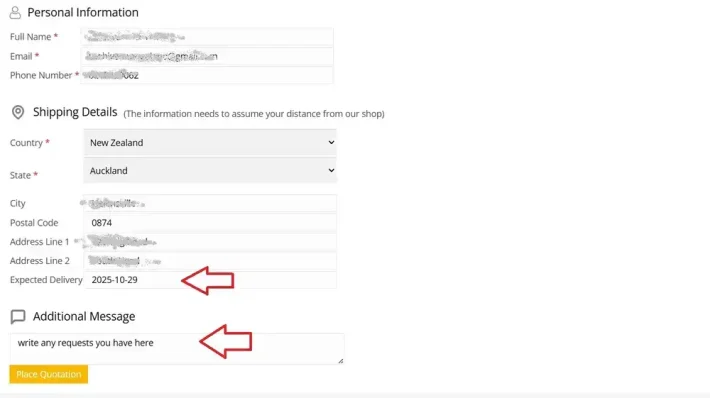
IMPORTANT: your personal information is using an AUTO FILL, please check the information is the correct information!
At the bottom, you can leave the date you would like delivery by – PLEASE MAKE SURE you have checked the vendor’s information on the listing as most items are handmade and will need a processing time.
You can also leave a message to the vendor here.
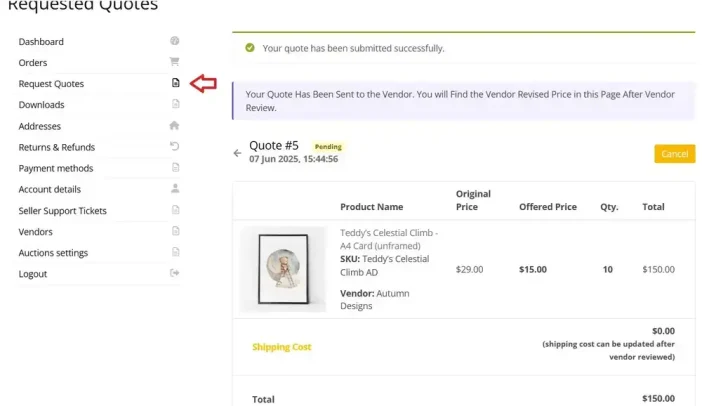
Once you have hit the ‘place quotation’ button, you will see the above and the vendor gets notified via email and within their vendor dashboard.
Now it is up to the vendor to review your offer and either accept OR counter offer.
WHEN THE VENDOR HAS A COUNTER OFFER:
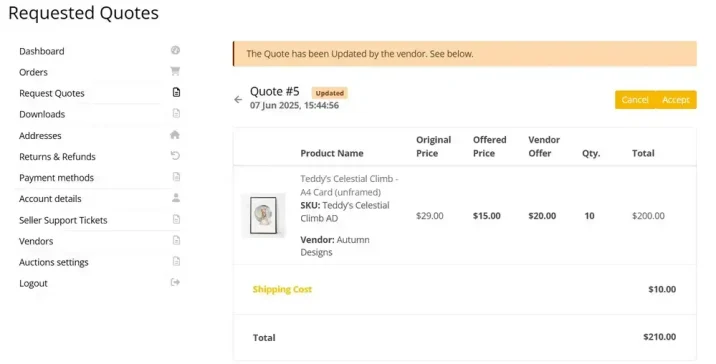
You will get notified via email and you will see the offer has changed in your customer dashboard (find your offers/quotes on your dashboard tab; ‘request quotes’).
You can see here now what your offered price was and what the vendor would agree to.
You now have the option to cancel or accept.
Cancel will cancel the whole process
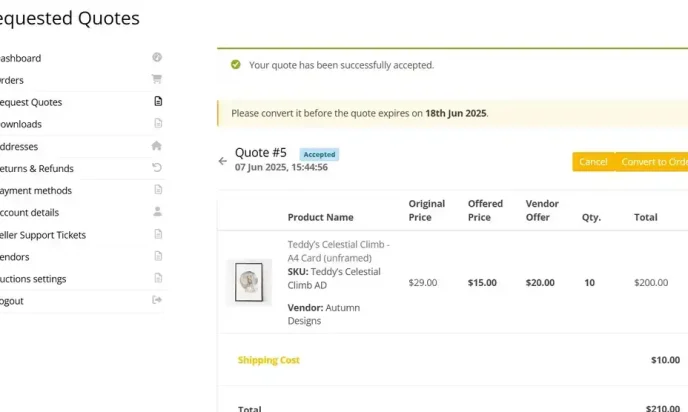
Accept will change the offer:
As you can see, there is a timeframe in which you need to complete the payment on a accepted offer.
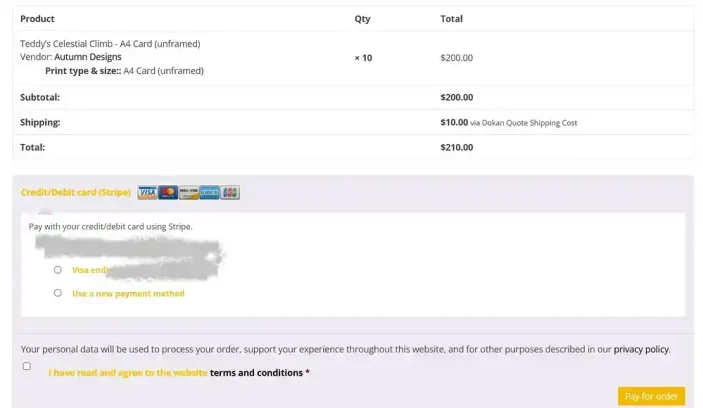
To complete, you will need to hit ‘convert to order’ which will take you to checkout with the order details and the payment screen.
Once paid, the order process is like any other – with the terms you agree on – and our site’s terms & conditions apply, hence why you need to confirm you agree to our T&C.
Once payment has been made, you will now find it in your ‘order’ tab of your customer dashboard.